화면 터치로 이동하기
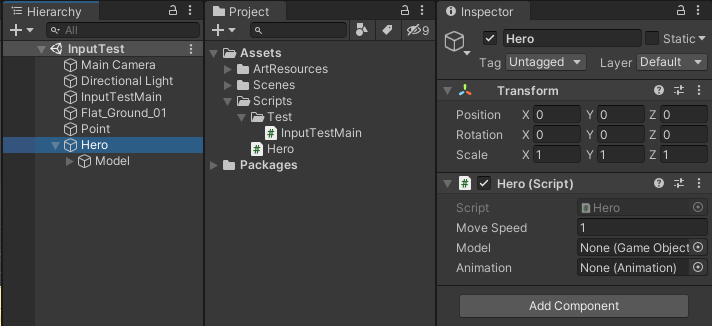
using System.Collections;
using System.Collections.Generic;
using UnityEngine;

public class InputTestMain : MonoBehaviour
{
    public Transform point;
    public Hero hero;
    void Update()
    {
        if(Input.GetMouseButtonDown(0))
        {
            Ray ray = Camera.main.ScreenPointToRay(Input.mousePosition);
            RaycastHit hit;
            if (Physics.Raycast(ray, out hit, 1000))
            {
                //Debug.Log(hit.point);
                var tpos = new Vector3(hit.point.x, 0, hit.point.z);
                this.point.position = hit.point;
                this.hero.Move(tpos);
            }
            Debug.DrawRay(ray.origin, ray.direction * 1000f, Color.red, 1f);
        }
    }
}
using System.Collections;
using System.Collections.Generic;
using UnityEngine;
public class Hero : MonoBehaviour
{
public float moveSpeed;
private Coroutine moveRoutine;
public void Start()
{
Debug.Log("start");
}
//초기화 메서드
public void Init()
{
Debug.Log("Init");
}
public void Move(Vector3 tpos)
{
Debug.Log(tpos);
this.transform.LookAt(tpos);
if(this.moveRoutine != null)
{
StopCoroutine(this.moveRoutine);
}
this.moveRoutine = StartCoroutine(this.MoveImpl(tpos));
}
private IEnumerator MoveImpl(Vector3 tpos)
{
//Vector3 dir = (tpos - this.transform.position).normalized; //단위 벡터
while(true)
{
//this.transform.Translate(dir * this.moveSpeed * Time.deltaTime);
this.transform.Translate(Vector3.forward * this.moveSpeed * Time.deltaTime);
//거리를 구하자
//var dir = tpos - this.transform.position;
//var distance = dir.magnitude;
float distance = Vector3.Distance(tpos, this.transform.position);
Debug.Log(distance);
if (distance <= 0.1f)
{
break;
}
yield return null;
}
}
}
| //카메라에서 스크린 포인트를 통과하는 광선을 반환합니다. Ray ray = Camera.main.ScreenPointToRay(Input.mousePosition); //이동할 방향을 바라본다 this.transform.LookAt(tpos); //앞으로 이동한다 this.transform.Translate(Vector3.forward * this.moveSpeed * Time.deltaTime); //레이케스트의 충돌확인 Physics.Raycast(ray, out hit, 1000) ------------------------------------------------------------------------------------------ Physics.Raycast 활용하여 3D 공간에서 충돌 체크하기 https://mingu.kr/82 |
https://docs.unity3d.com/ScriptReference/Camera.ScreenPointToRay.html
Unity - Scripting API: Camera.ScreenPointToRay
Resulting ray is in world space, starting on the near plane of the camera and going through position's (x,y) pixel coordinates on the screen (position.z is ignored). Screenspace is defined in pixels. The bottom-left of the screen is (0,0); the right-top is
docs.unity3d.com
https://docs.unity3d.com/kr/530/ScriptReference/Transform.LookAt.html
Unity - 스크립팅 API: Transform.LookAt
Then it rotates the transform to point its up direction vector in the direction hinted at by the worldUp vector. If you leave out the worldUp parameter, the function will use the world y axis. worldUp is only a hint vector. The up vector of the rotation wi
docs.unity3d.com
애니메이션 넣기
using System.Collections;
using System.Collections.Generic;
using UnityEngine;

public class Hero : MonoBehaviour
{
    public float moveSpeed;
    private Coroutine moveRoutine;
    public GameObject model;
    private Animation anim;

    public void Start()
    {
        Debug.Log("start");
        this.model = GameObject.Find("Model");
        this.anim = this.model.GetComponent<Animation>();
    }

    //초기화 메서드
    public void Init()
    {
        Debug.Log("init");
    }

    public void Move(Vector3 tpos)
    {
        Debug.Log(tpos);

        this.transform.LookAt(tpos);

        if (this.moveRoutine != null)
        {
            StopCoroutine(this.moveRoutine);
        }
        this.moveRoutine = StartCoroutine(this.MoveImpl(tpos));

    }
    private IEnumerator MoveImpl(Vector3 tpos)
    {
        //Vector3 dir = (tpos - this.transform.position).normalized;  //단위 벡터
        this.anim.Play("run@loop");
        while (true)
        {
            //this.transform.Translate(dir * this.moveSpeed * Time.deltaTime);
            this.transform.Translate(Vector3.forward * this.moveSpeed * Time.deltaTime);
            //거리를 구하자
            //var dir = tpos - this.transform.position;
            //var distance = dir.magnitude;
            float distance = Vector3.Distance(tpos, this.transform.position);
            Debug.Log(distance);
            if (distance <= 0.1f)
            {
                break;
            }

            yield return null;
        }
        this.anim.Stop("run@loop");
        this.anim.Play("idle@loop");
    }
}
using System.Collections;
using System.Collections.Generic;
using UnityEngine;
public class InputTestMain : MonoBehaviour
{
public Transform point;
public Hero hero;
void Update()
{
if (Input.GetMouseButtonDown(0))
{
Ray ray = Camera.main.ScreenPointToRay(Input.mousePosition);
RaycastHit hit;
if (Physics.Raycast(ray, out hit, 1000))
{
//Debug.Log(hit.point);
var tpos = new Vector3(hit.point.x, 0, hit.point.z);
this.point.position = hit.point;
this.hero.Move(tpos);
}
Debug.DrawRay(ray.origin, ray.direction * 1000f, Color.red, 1f);
}
}
}| //애니메이션을 실행한다 this.animation.Play("run@loop"); //애니메이션을 멈춘다 this.animation.Stop("run@loop"); |
https://docs.unity3d.com/ScriptReference/Animation.Play.html
Unity - Scripting API: Animation.Play
If no name is supplied then the default animation will be played. In cases where the animation can not be played (for example when there is no default animation or no animation with the specified name), the function will return false. The optional PlayMode
docs.unity3d.com
https://docs.unity3d.com/kr/530/ScriptReference/Animation.Stop.html
Unity - 스크립팅 API: Animation.Stop
Success! Thank you for helping us improve the quality of Unity Documentation. Although we cannot accept all submissions, we do read each suggested change from our users and will make updates where applicable. 닫기
docs.unity3d.com
'Unity > 게임 엔진 응용 프로그래밍' 카테고리의 다른 글
| [Unity 3D] MiniRPG : 캐릭터 공격 애니메이션 (0) | 2021.10.19 |
|---|---|
| [Unity 3D] MiniRPG : 캐릭터 생성과 이동 연결하기 (0) | 2021.10.19 |
| [Unity 3D] MiniRPG : 캐릭터 생성(프리팹 로드하기) (0) | 2021.10.19 |
| 유니티 Resources 폴더 (0) | 2021.10.18 |
| [Unity 3D] MiniRPG : 게임 기획하기 (0) | 2021.10.18 |